Sign up & create a community
Three minutes from zero account to a running community.
1. Create your account
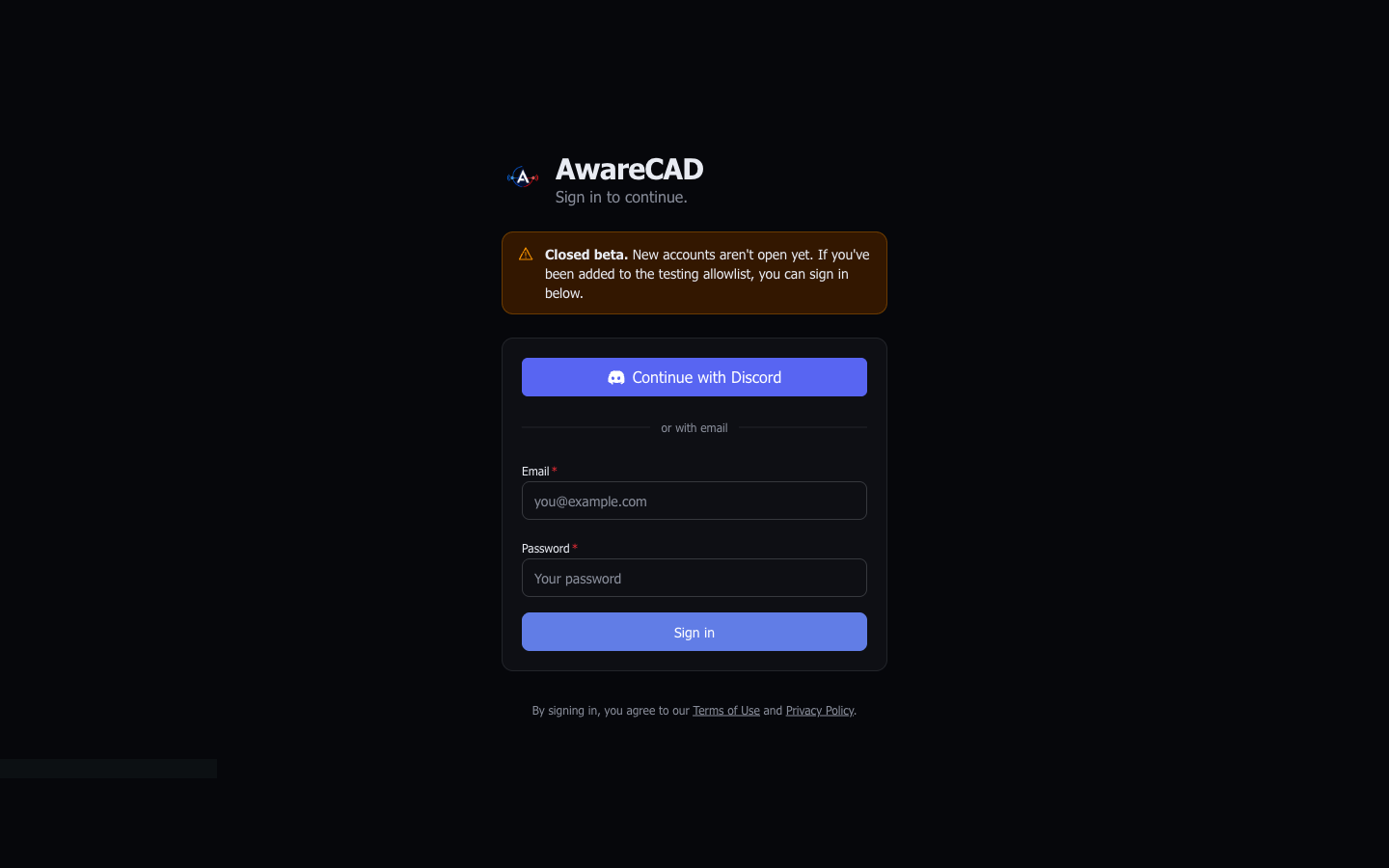
Go to app.awarecad.com and sign in. AwareCAD uses Supabase Auth — pick either email + password or Continue with Discord. Discord OAuth requests three things on AwareCAD's behalf: your username, your email, and which guild roles you have on servers you share with our bot (used by community auto-enroll if any community has bound its Discord guild to AwareCAD).
During closed beta, your email must be on the beta allowlist. If it isn't, the OAuth handshake gets reversed and you see a "closed beta" message on the login page — no AwareCAD account is created. Add yourself to the waitlist on awarecad.com to be considered.
2. Link your Roblox account
AwareCAD is Roblox-native — every member is identified by their Roblox username, not an IRL name or DOB. The first time you sign in, you'll be asked to link your Roblox account via OAuth. This grants AwareCAD a read-only token to verify your username, fetch your avatar, and read your group memberships (used by auto-enroll).
You can revoke the link at any time from your Roblox account settings. Without the link, you can't be a member of any community — it's a hard requirement.
3. Create a community (owner path)
From the onboarding page, pick "I'm creating a community for my server". You'll provide a name and a slug (used in URLs). Slugs must be 3–40 chars, lowercase, dashes ok, no leading/trailing dash.
One account can own exactly one community. You can be a member of any number of other communities (officer, dispatcher, civilian), but the "owner" seat is per-account. This is enforced server-side so the create button on a second attempt errors with a friendly explanation.
When the community is created, AwareCAD seeds four default departments with rank ladders: Police Department (PD), Sheriff's Office (SO), Fire / EMS (FD), and Department of Transportation (DOT). You can rename, add to, or delete any of these later from the admin surface.
4. Or join an existing community (member path)
Pick "I have an invite code" and paste the token your community admin gave you. Invite tokens are single-use; once consumed, you become an active member with whatever role the inviter set (typically officer or civilian).
If your community uses Roblox group auto-enroll or Discord role auto-enroll, you may not need a token at all — your role in the linked Roblox group or Discord guild propagates to AwareCAD automatically the next time you sign in.
What's next
If you created a community, the next step is First steps after onboarding — the five things to set up before inviting officers.
If you joined an existing community, head to your role's guide: officer, dispatcher, or civilian.
Last updated May 18, 2026.